You asked for Answers and I delivered!

Of course with a helpful hand of a blogging friend.
Now I have already told you TURN OFF word verification, hope you listened, because when I come to visit you and it is still on.....OOOHHHH I will be cussing in all those crazy letters!
Thanks to Anne from Calamity Anne's adventures, you will learn all about how to make your own button.
Please hop on over to Anne's, there you will find some of the tastiest recipes and other tips. You see my silly name? Anne taught me that too. She rocks! She also put a lot of time in this tutorial!
Please hop on over to Anne's, there you will find some of the tastiest recipes and other tips. You see my silly name? Anne taught me that too. She rocks! She also put a lot of time in this tutorial!
..Blog Button with Text Code...
Have you seen those buttons on blogs where there's some text beneath it.....then you grab that text and enter it onto your blog.....and VOILA.....you've got a button for people to click on to get back to that particular blog?
Have you ever wondered how to do that? Well, dear friends, that wait is now officially over! Today I'm going to share with you not only how to make that button with the text code.....BUT.....also how to make a simple button of your very own! Once you get the gist of making a button, then you're free and clear to dive in and make more buttons that you can doody up with gorgeous flourishes and whimsical swirly-ma-jigs! With that said.....clear your cranium.....get your butt all comfy in your seat.....and let's get to work!
How To Make A Button With Text Code In Bloggeradapted by Anne
You'll Need
- Computer (duh)
- Picnik
- Photobucket
- Creativeness
- Patience
The first thing you're going to need to do is make a blog button. I've tried a couple of different ways of making them, and find that the following is the simplest and quickest one.
You need to have a photo or picture in mind for the background of your button before you can start creating. I decided for the button I'm making today, to capture a small part of the background of the blog this button will be going on.....wanted to keep it all matchy-matchy. So here's the background I'm using for the blog button...
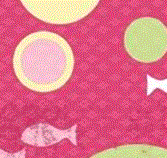
Pull up picnik.com.....you can create an account if you want to (it's free), but it's not necessary (though you can't save your work on their site without one). Under the Library tab, click on Edit Photos...

On the screen that pops up, click on Upload Photos...

Here's where you need to upload the photo or picture you chose for your blog button background. Once you find the photo, click on it, and then click on Open...

First thing you'll want to do is resize the photo. Click on the Edit tab, and then click the Resize tab...

Unclick Keep Proportions (you want your photo to be a perfect square). Then change the dimensions to 150 x 150 in the New dimensions tabs. Then click on OK...
Here's where the fun begins! Click on the Create tab...
For my blog button, I just want to add some text.....though you can also add stickers, frames, effects, or whatever you desire to create your one-of-a-kind button!
Click on the Text tab...

You can now start typing in what you want on your button (the norm is your blog name). I prefer to type in one word at a time and work with that word only, which gives me more leeway for arranging everything in such a small space. Once I've got all my words typed in, then I can choose the font, color, and arrangement.

If you're satisfied with your button, then click on Save & Share...

The only thing left to do is click on Save Photo, and you're good to go! Remember what you named your button and where you saved it!

Now it's time to head over to Photobucket.com. If you have an account, then just sign in, if not, then you'll need to create one (it's free). Once you are signed in, click on Upload Now...

Then click on Select photos and videos...

Find the photo of the button you created on Picnik, and click to open. Once the upload is complete, click on Save and continue to my album...

The next step is where you are going to get the necessary code to create the blog button with text code. First thing you need to do is open up a blank Word document, so you have a place to store this code until you need it.
Click on the photo of the button, and you'll be brought to a screen where there are four (4) codes. You're only interested in the Direct Link, so click on the code in that box (which will instantly copy the code for you)...

Now paste that code in your blank Word document. Close Photobucket.
Head on over to your blog, and on the Dashboard, click on Design for the blog that you want this button to be applied to...

Then click on Add a Gadget. My blog is set up for several places to add a gadget.....you just need to select a spot that works for your blog.

Click on HTML/JavaScript...

Where it says Title, you can add whatever you want. I chose Grab My Button.
In the Content box, you will need to add the following code. Just copy and paste...
<center><a href="http://YOUR WEB ADDRESS/" target="_blank" title="BLOG TITLE"><img alt="BLOG TITLE" src="http://IMAGE WEB ADDRESS"/></a> <center>
</center>
<center><textarea id="code-source" rows="3" cols="13" name="code-source"><center><a href="http://YOUR WEB ADDRESS/"><img border="0" src="http://IMAGE WEB ADDRESS"/></a></center></textarea></center>
</center>
<center><textarea id="code-source" rows="3" cols="13" name="code-source"><center><a href="http://YOUR WEB ADDRESS/"><img border="0" src="http://IMAGE WEB ADDRESS"/></a></center></textarea></center>
Now we need to replace some of the information to the above code. Where it says, http://YOUR WEB ADDRESS/, replace that with your blogs' web address (there are two places where you'll enter that information). Then where it says, BLOG TITLE, put in your blogs' name (there are two places where you'll enter that information). Next you'll need to go to your Word document where you saved your Photobucket code.....copy that code, and then pop it in where it says http://IMAGE WEB ADDRESS (there are two places where you'll enter that information). When entering both your web and image addresses.....make sure you only have ONE http://; showing. All words in black will remain as is.
This is what the code should look like.....of course, it'll have your info in it. If everything looks great.....then click on Save.

Once you've saved the code, then click on Preview and you'll get your first chance to view how your button will look like once it's on your blog. If everything is purdy and perfect, then click on Save...

Here's how the button will look when it's on your blog. Notice that you now have the code beneath the button so everyone can grab it and put your button on their blogs!

This is what your button will look like on someone's blog who grabbed your code. When anyone clicks on it, they will be taken right back to where it all began!
Go ahead and click on the button.....you'll be taken to my new shop which I hope to open very soon!!!

I hope I explained this as simply as possible.....but, if there's anything at all that you need clarification on, then please comment below and I'll answer back to you as quickly as possible!
I hope you enjoy your new buttons!!!
I have some more exciting tips, and tricks coming up, you do not want to miss. I also have a special guest coming up soon!
PLEASE head on over to ANNE'S and say hello:) If you have any other questions, she will be happy to help you out.
Labels: Blog featured, blogging manners
posted by Debbiedoos @ 4:45 PM
55 Comments





 I do love feedback etc...my posts are
 I have to also admit I loved the traffic flow my blog was receiving, it was so much joy to see all the people on my page.....and how does that happen...you post often and people come over. But I have to admit I was getting annoyed myself at seeing myself if that makes sense!
  was driven, and I
  and they still love me and are well taken care of. Now my home, well it can be a little cleaner like it used to be...and that is what I will go back to...I love to clean!


